Setting up Proxy for Telegram on Different Platforms

TelegramProxy
2/27/2025
#telegram#proxy#telegram-proxy#settings#android#ios#windows#mac#linux

Setting up Proxy for Telegram on Different Platforms
In this article, we will guide you through the process of setting up a proxy for Telegram on different platforms including Android, iOS, Windows, Mac, and Linux.
The easiest way
Super simple method, click the "Connect" button corresponding to the proxy on the Free Proxy page to add it with just one click, suitable for all platforms!
Android
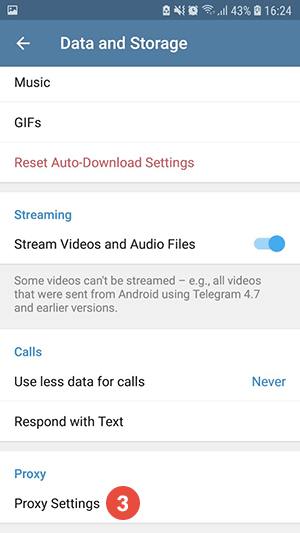
- Swipe right to expand the menu and tap on
Settings. - Tap on
Data and storage. - Scroll down and find
Proxy Settings. - Enter the proxy server address and port number.
- Turn on the proxy option.
iOS
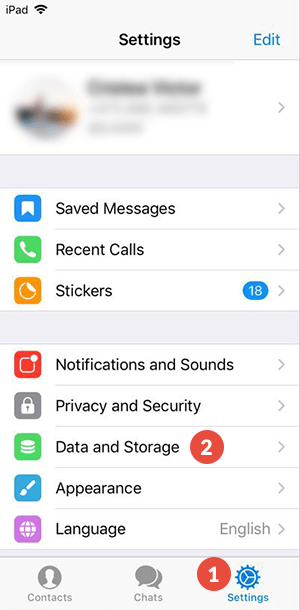
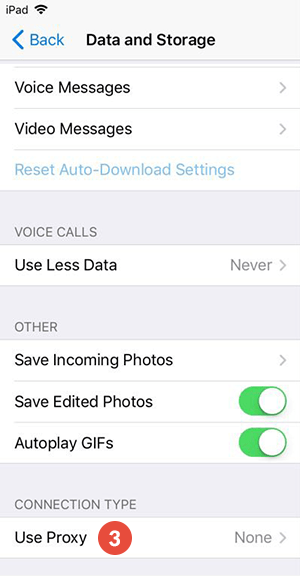
- Open Telegram and go to
Settings. - Tap on
Data and Storage. - Select
Use Proxy. - Enter the proxy server address, port, username, and password (if required).
- Save the settings.
Windows
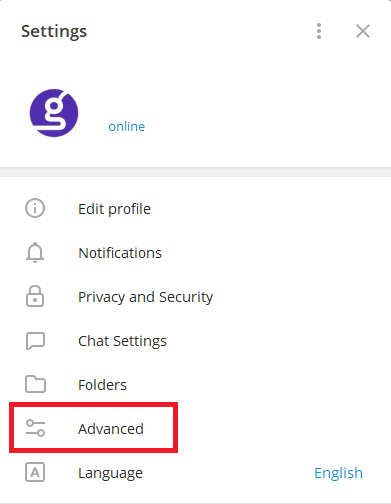
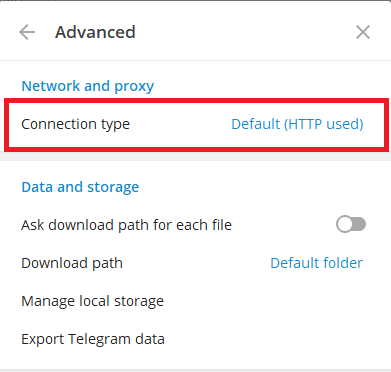
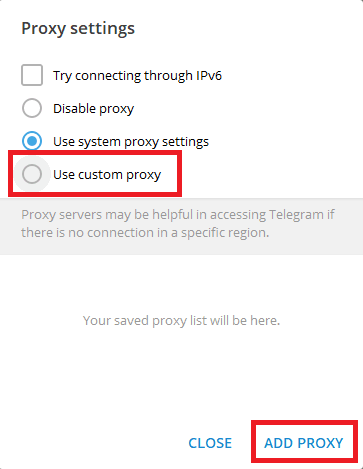
- Open Telegram and go to
Settings. - Click on
Advanced Settings. - Find
Connection type. - Choose
Manual proxy. - You can either select
Use Custom ProxyorAdd Proxy. - Save the settings.
Mac
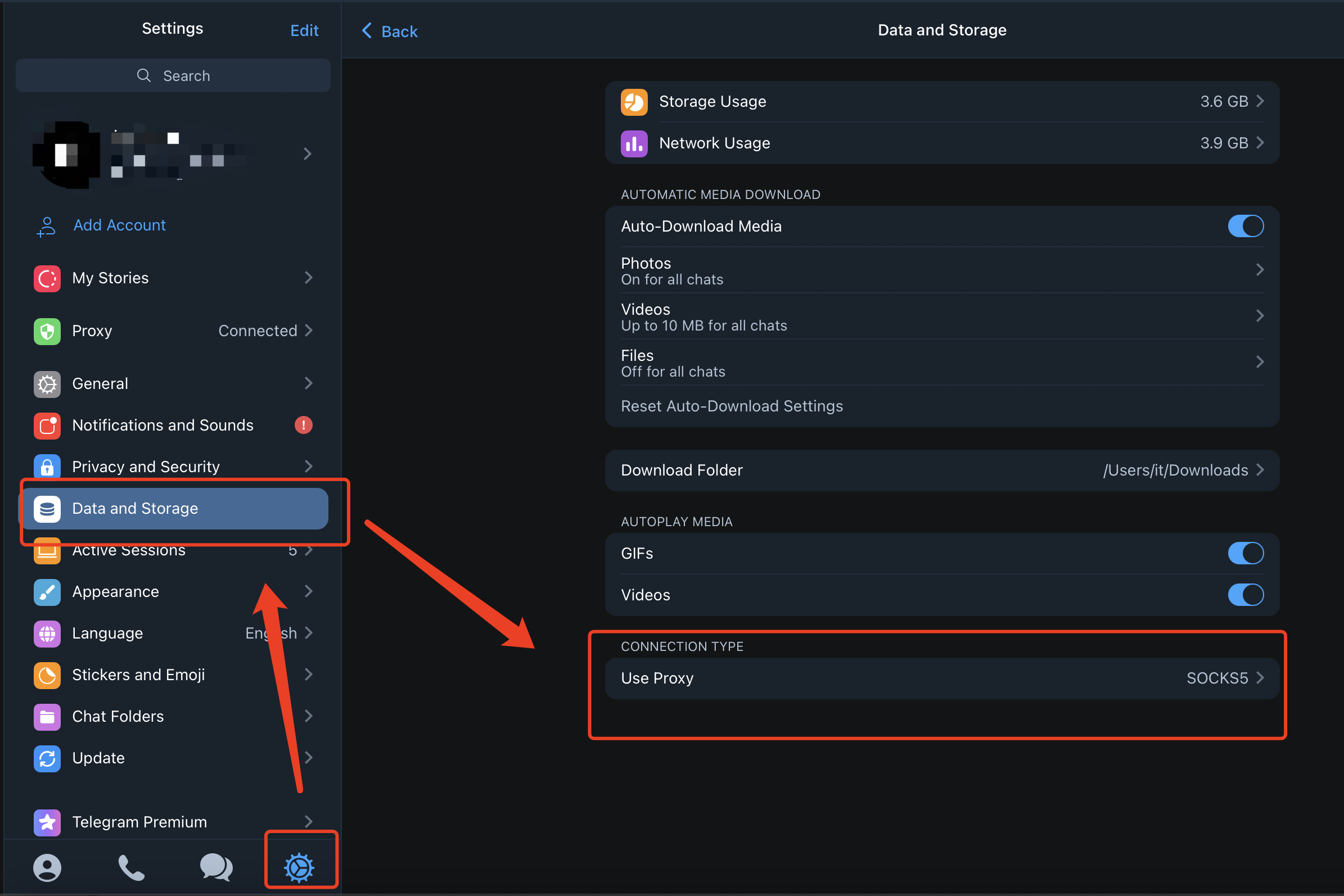
- Open Telegram and go to
Telegramin the menu bar. - Click on
Settings. - Select
Data and storage. - Find
Use Proxy. - Enter the proxy server address and port number.
- Save the settings.
Linux
- Open the terminal.
- Type
sudo vim /etc/environmentto open the environment file. - Add the following lines:
http_proxy=http://<proxy_server_address>:<port>
https_proxy=https://<proxy_server_address>:<port>
- Save the file.
- Restart your system.
By following these steps, you can easily set up a proxy for Telegram on various platforms, enhancing your privacy and security while using the app. Stay safe and secure online!