How to Read a Telegram Proxy List: Online, Latency, and Success Rate

TelegramProxy
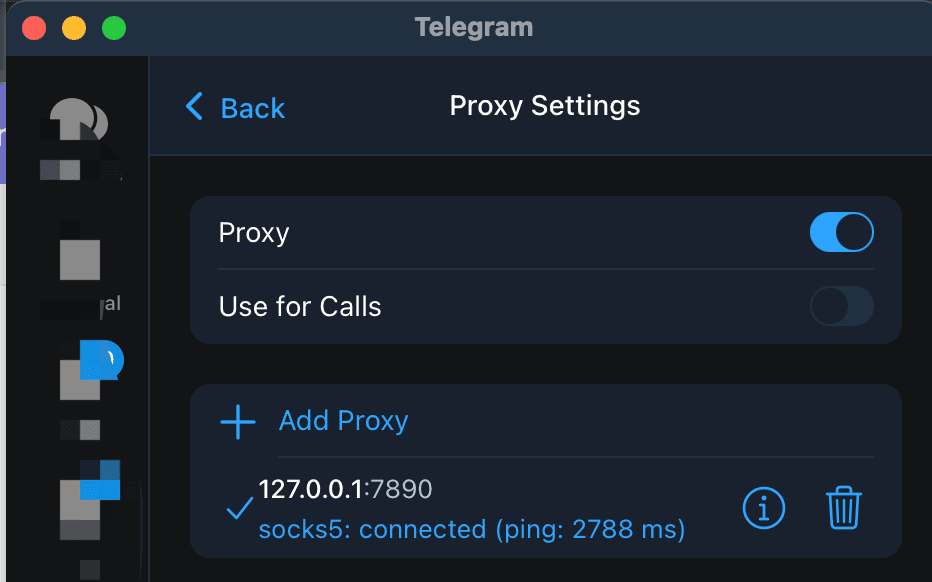
Choose a Telegram proxy from a list by checking the complete credentials first, then the check time, Online status, recent success rate, and latency. On TGProxyHub, Online means that the directory health checker opened a TCP connection to the listed server and port within its timeout. It does not prove that Telegram accepted the secret, that messages will send, or that the endpoint works on your network. Success rate is the share of recorded TCP checks that succeeded for that listing. Latency measures connection setup, not download speed or call quality. A country label is directory metadata, not proof of physical location or local reachability. Open the free Telegram proxy list, keep the server, port, and secret from one row, use Connect, and then send a test message in Telegram. If the saved proxy stays on Connecting, try another row and repeat on the same network. For the credential format, use Telegram's MTProto documentation.
What does "Online" mean on a Telegram proxy list?
Each directory health run opens a raw TCP socket to the listed host and port. The current checker waits up to four seconds. A successful TCP connection sets the row to Online and records the elapsed milliseconds. A timeout or socket error records an unsuccessful check. The checker does not complete Telegram's MTProto handshake or load the Telegram app.
That makes Online a useful first filter. It tells you that the endpoint accepted a low-level connection from the checker at a particular time. It does not tell you whether the secret is correct, whether your carrier can reach the endpoint, or whether Telegram will deliver a message through it.
| List field | What it tells you | What it cannot prove | | --- | --- | --- | | Online or Offline | The result of the latest TCP check | Telegram login, message delivery, or reachability from your network | | Latency | Time until the checker established TCP | Telegram download speed, call quality, or future performance | | Last checked | When the directory recorded that result | That the same endpoint is available now | | Success rate | Share of recorded TCP checks that succeeded | A guarantee for your device, carrier, or Wi-Fi | | Country | The directory's country label | Physical location or country-wide access |
How should you read latency and success rate?
Latency is the time between the checker starting a socket connection and receiving the TCP connect event. A lower value can be a useful tie-breaker between similar rows, but it is not a Telegram speed ranking. The app still has to authenticate the proxy, reach Telegram, and move the traffic you care about. A row with 120 ms of TCP latency can still be poor for a large download, while a higher-latency row may be usable on a different route.
The success percentage is calculated from the row's recorded health checks. A 100% result over two checks is weaker evidence than a 90% result over ten checks because the samples are different sizes. On this project, the health history is kept bounded: after it reaches 20 checks, older counts are reduced before a new check is added. Read the percentage as a recent directory signal, not lifetime uptime.
Use the fields together. A fresh Online row with a reasonable success history is a better starting point than an old row with a perfect result from very few checks. The final decision still comes from Telegram on the network where you need it.
Does a country label show where the proxy will work?
The country name helps you filter a long list. It does not predict whether Telegram will connect from that country. The site's country pages describe the labels as estimates from endpoint IP location data, and the label can change when an operator moves or rotates infrastructure. For example, you can compare the Iran proxy list or China proxy list with the global list, but the label alone does not prove local reachability.
The same limit applies to a server's physical location. A directory label is useful metadata for sorting and comparison. It is not evidence that the server is physically in the named country, that a local carrier permits the route, or that the endpoint will work for every Telegram user there.
How do you choose one row and test it?
Use a short, repeatable process so the list fields and your Telegram result do not get mixed together:
- Open the free Telegram proxy list and choose a row with a complete MTProto record. Keep its server, port, and secret together. Telegram's documentation says that MTProto requires all three values.
- Read
Last checked,Online, the success percentage, and latency. Prefer a recent result with enough checks to be meaningful. Do not choose by country or latency alone. - Select Connect. If you enter the values manually, compare every character with the same row. The Telegram proxy server guide explains the difference between MTProto and SOCKS5 fields.
- Open Telegram's proxy settings and confirm that the entry is enabled. Telegram says a shield icon appears at the top of the chat list after a proxy connects.
- Send a test message or open a chat that you can safely use for the check. This is the app-level test that the directory cannot perform for you.
- If the result is poor, keep the same Wi-Fi or mobile connection and try one other complete row. Record the row, network, and time so the comparison has a clear variable.
What should you do when an Online proxy fails in Telegram?
The next step depends on where the result changes:
| Observation | Practical next step | | --- | --- | | The row is Online, but Telegram stays on Connecting | Reopen the same complete record, remove a conflicting saved route, and try another row if it still fails. | | Telegram connects, but messages do not send | Repeat the message test, then compare another endpoint on the same network. The directory's TCP result does not cover message delivery. | | The row has low latency, but downloads are slow | Test the same file through another endpoint. The Telegram proxy download guide explains why TCP latency is not media throughput. | | The endpoint works on Wi-Fi but fails on mobile data | Treat the two networks as different routes and repeat the comparison without changing the endpoint first. | | The last check is old | Treat the displayed result as stale and choose a recently checked row or refresh the list before drawing a conclusion. |
If several fresh rows fail on the same network, that pattern still does not identify the cause by itself. A client setting, another VPN or proxy, a captive portal, or the network route may be involved. The Iran connection troubleshooting guide shows how to separate a directory health result from an app connection result without treating either one as country-wide proof.
Telegram proxy list questions
Is a 100% success rate the best choice?
It is a positive signal within the recorded checks, but the number of checks and the age of the last result matter. A perfect rate from a small sample does not predict future availability.
Does the lowest latency mean the proxy is fastest?
No. Latency measures TCP connection setup from the checker. It does not measure Telegram media throughput, voice quality, or how the route performs from your device.
Can I combine the server from one row with the secret from another?
No. Keep the server, port, and secret from one MTProto entry. Mixing rows creates a different credential set from the one the directory checked.
Does an Online label prove that Telegram will connect?
No. It proves only that the latest low-level check succeeded from the checker environment. Telegram must still accept the proxy details and your network must reach the endpoint.
Official reference
- Telegram MTProxy documentation: proxy types, required credentials, client settings, and the connected shield indicator.
Related guides
- Can a Telegram Proxy Make Downloads Faster?
A practical test for Telegram proxy download speed, including route comparisons, endpoint checks, and limits that a proxy cannot remove.
- Does a Telegram Proxy Work for Voice and Video Calls?
Learn what a Telegram proxy can tell you about calls, where to find the call setting, and how to test one route without treating a chat connection as call proof.
- Telegram Proxy for Bots: App Proxy vs Bot API
Learn whether Telegram's in-app proxy changes a bot's API connection, how to route each layer, and how to test the failing path.