Telegram Proxy for PC: Set Up and Test Telegram Desktop on Windows

TelegramProxy
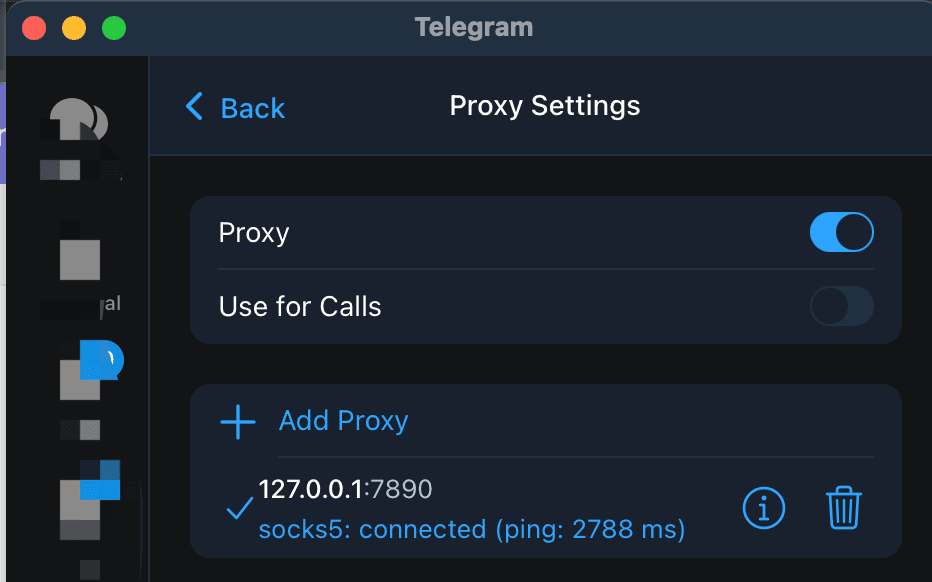
If you need a Telegram proxy on a Windows PC, open Telegram Desktop and go to Settings > Advanced > Connection Type. Choose the custom proxy option, select MTProto or SOCKS5, and enter one complete endpoint. MTProto needs the server, port, and secret; SOCKS5 needs the server and port plus a username and password when the provider supplies them. Telegram's official MTProxy documentation lists this desktop path and the required fields. After saving, enable the proxy, wait for the shield icon, then refresh an existing chat or send a low-risk test message. If a tg://proxy or t.me/proxy link does not hand off to Telegram, enter the same row manually. Keep the proxy and network unchanged while testing. An Online label from a public directory describes its own server check. It does not prove that Telegram accepted the credentials or that messages will send from your PC.
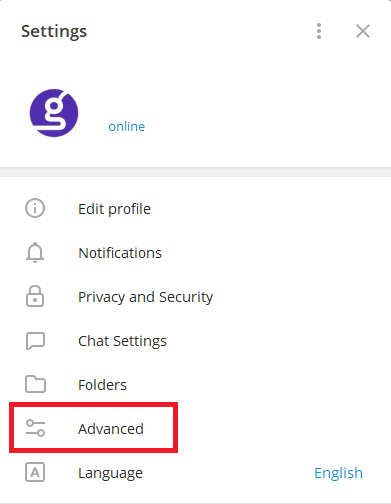
Where is the proxy setting in Telegram Desktop on Windows?
Telegram's documented desktop path is Settings > Advanced > Connection Type. Open Settings, choose Advanced, and look under Network and proxy for Connection type. The wording can change between Telegram Desktop versions, but these sections are the useful landmarks.
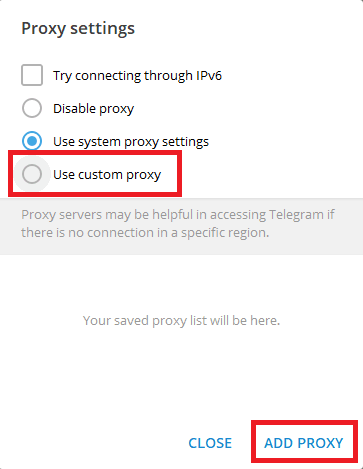
The connection screen normally separates three choices:
- Disable proxy sends Telegram through its direct route.
- Use system proxy settings follows a proxy configured in Windows.
- Use custom proxy lets Telegram use its own MTProto or SOCKS5 entry.
Choose Use custom proxy when you are adding an endpoint from the free Telegram proxy directory. Then choose Add Proxy and enter the values from one listing. A Windows system proxy and Telegram's in-app proxy are separate settings, so changing one does not automatically change the other.
Which proxy type should you choose on a PC?
Telegram Desktop supports both common proxy formats. Pick the format that matches the complete record you have:
| Type | Fields Telegram needs | Good fit | | --- | --- | --- | | MTProto | Server, port, and secret | A Telegram-specific endpoint from the free proxy list | | SOCKS5 | Server and port, plus username and password when supplied | A general proxy whose provider gives SOCKS5 credentials |
Do not paste an MTProto secret into a SOCKS5 form. If you use an MTProto row, keep its server, port, and secret together. The Telegram proxy server guide explains what each field means and how to spot a mixed record.
How do you add a Telegram proxy manually on Windows?
- Open the free Telegram proxy list and choose one MTProto or SOCKS5 row.
- Select Connect if Telegram Desktop is installed and the link handoff works. Otherwise copy the complete values from that same row.
- In Telegram Desktop, open Settings > Advanced > Connection Type, choose Use custom proxy, and select Add Proxy.
- Select the matching protocol. Enter the server and port. Add the MTProto secret or the SOCKS5 username and password only when the source provides them.
- Save the entry, select it, and enable the proxy.
Telegram's deep-link documentation describes the tg://proxy and t.me/proxy formats. When a link opens a browser or does nothing, manual entry keeps the test tied to the same endpoint. Avoid combining a server from one row with a port or secret from another.
How can you test the proxy on a Windows PC?
Use one endpoint and one network for the first check. A short sequence gives you more useful evidence than changing several settings together:
- Confirm that Telegram Desktop saved the entry and shows it as enabled.
- Check for the shield icon at the top of the chat list.
- Refresh an existing chat, then send a low-risk text message if appropriate.
- Repeat the test on a phone hotspot or another network only after recording the first result.
- Keep any VPN or Windows system proxy unchanged for the first comparison, then test that layer separately if needed.
| What you see | Next check | | --- | --- | | Connection type remains on the default or system option | Select Use custom proxy and open the saved entry | | The entry saves but stays on Connecting | Re-copy the complete fields and try another endpoint | | A Connect link opens a browser | Use the HTTPS handoff or add the same row manually | | It works on a hotspot but not on Wi-Fi | Compare the two network paths; the result is specific to those conditions | | Telegram shows a shield but chats do not refresh | Check the app with a low-risk message and review any separate VPN or system proxy |
Why can a PC proxy show Online but Telegram still fail?
TGProxyHub's directory health check opens a TCP connection to the listed server and port. It does not authenticate the MTProto secret, create a Telegram session, or send a message from your Windows PC. An Online badge helps sort entries, while the Telegram test checks the route and credentials you actually use.
Country labels, latency, and recent health fields have the same limit. They describe the directory's classification or low-level observation. They do not prove the endpoint's physical location, reachability from your ISP, or continued availability after you select it.
What should you change when Telegram Desktop stays on Connecting?
Start with the settings you can isolate:
- Open Connection Type and confirm that the intended custom proxy is selected.
- Check the server, port, and secret against the same source row. A single changed character can invalidate an MTProto entry.
- Turn off Auto-Switch Proxies while diagnosing so Telegram does not move between saved endpoints.
- Test the same endpoint on Wi-Fi and a phone hotspot without changing its fields.
- If both networks fail, try another complete row. If only one network fails, investigate its system proxy, VPN, captive portal, or firewall policy.
The Telegram proxy disconnect guide covers Auto-Switch and repeated drops. If you want to stop using the route altogether, follow the guide to disabling a Telegram proxy.
Questions about Telegram proxies on PC
Does a Telegram proxy on PC affect my web browser?
No. A custom proxy selected inside Telegram Desktop applies to that app. A browser, Windows system proxy, and VPN have their own network settings.
Can I use a proxy link on Telegram Desktop?
Yes, when the browser and operating system hand the tg://proxy or t.me/proxy link to Telegram. Manual entry is the fallback when the link does not save the endpoint.
Does an Online badge mean the PC connection will work?
No. It reports a directory check. Telegram Desktop still has to accept the credentials and complete a connection from your device and network.
Telegram documentation for this setup
- Telegram MTProxy documentation
- Telegram deep links
- Telegram proxy setup on Android, iOS, Windows, Mac, and Linux
TelegramProxy is not affiliated with Telegram. Public proxy listings are third-party services and may be offline when you test them.
Related guides
- Indian Telegram Proxy: How to Choose and Test an MTProto Server
A practical way to use India-listed Telegram proxies, test the full connection in Telegram, and avoid treating an online label as a guarantee.
- Telegram Proxy Server: Where to Find the Host, Port, and Secret
Find a complete Telegram proxy server entry, match its MTProto fields, and test the connection without treating an online label as a guarantee.
- How to Set Up a Telegram Proxy on Android, iOS, Windows, Mac, and Linux
Step-by-step Telegram proxy setup instructions for Android, iOS, Windows, macOS, and Linux.