How to Set Up a Telegram Proxy on Android, iOS, Windows, Mac, and Linux

TelegramProxy

This guide shows how to set up a Telegram proxy on Android, iOS, Windows, macOS, and Linux. If you only need a working public endpoint first, open the free MTProto proxy list and use Connect. For background on MTProto vs SOCKS5, read What is a Telegram Proxy?.
The easiest way (all platforms)
- Open Free Telegram Proxies.
- Choose a country server.
- Tap Connect to open Telegram with a one-click MTProto link.
- Confirm the proxy is enabled in Telegram settings.
If the first server fails, try another endpoint—public proxies rotate often.
Android
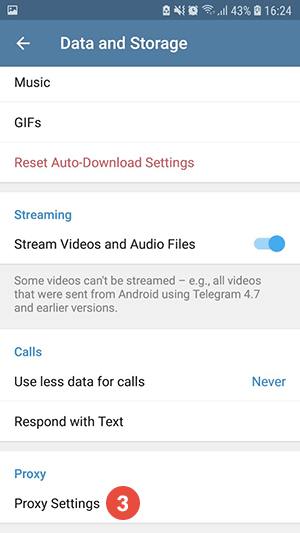
- Swipe right to open the menu and open Settings.
- Tap Data and storage.
- Open Proxy settings.
- Add a proxy (MTProto preferred) with server, port, and secret if required.
- Enable the proxy and wait for the connection status to update.
iOS
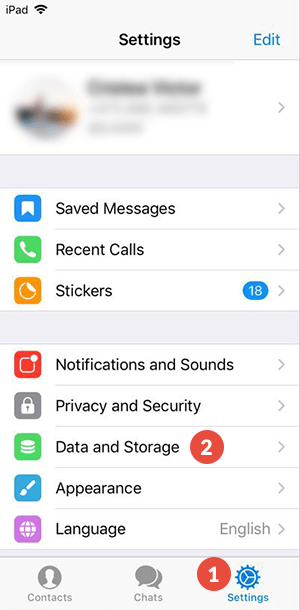
- Open Settings in Telegram.
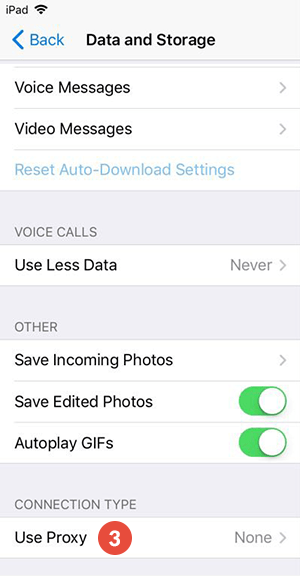
- Tap Data and Storage.
- Open Proxy.
- Add an MTProto or SOCKS5 proxy and enable it.
Windows and macOS (Telegram Desktop)
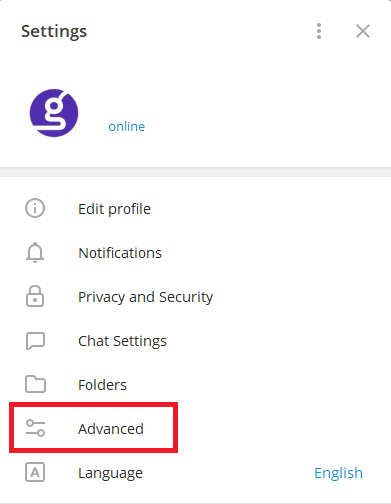
- Open Settings → Advanced.
- Find Connection type / proxy settings.
- Add MTProto (server, port, secret) or SOCKS5 credentials.
- Save and confirm the status shows connected.
Use the screenshots under /images/blog/how-to-set-up-proxy-windows-*.png if the menu labels differ slightly by Desktop version.
Linux
Telegram Desktop on Linux follows the same Advanced → proxy path as Windows/macOS. You can also paste a tg://proxy link from the free list into a browser that hands it off to Telegram.
Troubleshooting
- Proxy stuck on connecting: try another country endpoint.
- Works on mobile but not desktop: re-add the secret carefully; MTProto secrets are case-sensitive.
- Still blocked: a proxy only helps Telegram traffic—some networks need a different route or VPN policy.
Next reads
Related guides
- How to disable a Telegram proxy on Android, iPhone, and desktop
Turn off Telegram's in-app proxy on Android, iPhone, Telegram Desktop, and macOS without confusing it with a device-wide VPN.
- Telegram Proxy for PC: Set Up and Test Telegram Desktop on Windows
Set up an MTProto or SOCKS5 proxy on Telegram Desktop for Windows, choose the right connection type, and test the route without confusing it with a system proxy.
- Telegram Proxy on iPhone: Add MTProto When a Link Does Not Open
How to add an MTProto proxy manually on iPhone when a Telegram proxy link does not open or save correctly.