How to disable a Telegram proxy on Android, iPhone, and desktop

TelegramProxy
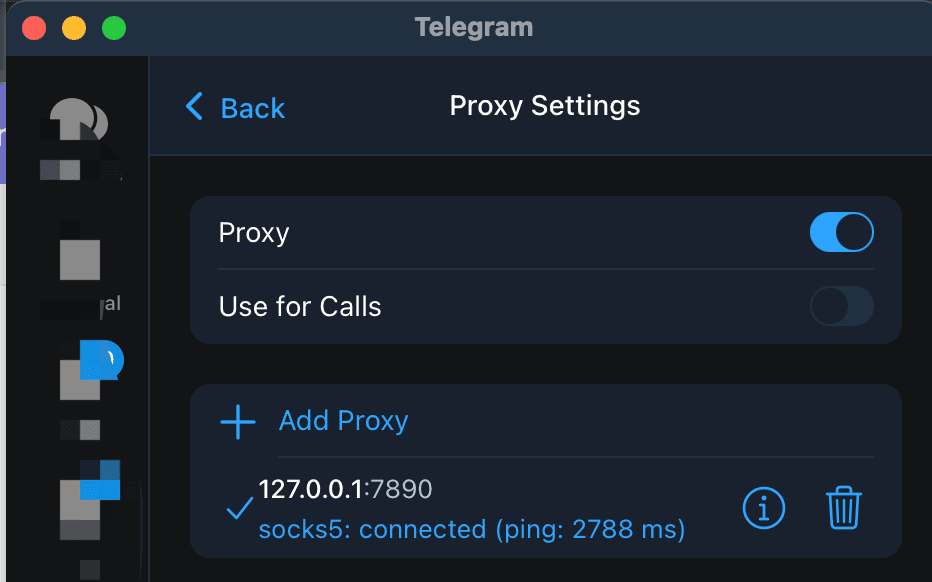
If you need to stop Telegram using a proxy, open the app's proxy settings and turn off the Use Proxy control. On Android, Telegram lists this under Settings > Data and Storage > Proxy Settings; on iPhone, under Settings > Data and Storage > Proxy. Telegram Desktop uses Settings > Advanced > Connection Type, while Telegram for macOS uses Settings > Data and Storage > Use Proxy. These paths come from Telegram's MTProxy documentation. Turning off the in-app proxy changes Telegram's route only. It does not disable a separate VPN, system proxy, or browser extension. If the shield icon is visible at the top of your chat list, tap it to open proxy settings. Otherwise, use the menu path for your client. When the control is off, reload a chat on the same network to check the direct connection. Keep the saved entry if you may need it later; use a separate delete control only when you want to remove its credentials.
When should you disable a Telegram proxy?
Turning off the in-app proxy is useful when you want to compare Telegram's direct route with its proxy route, stop retrying an endpoint that stays on Connecting, or test a second VPN or network configuration. It also gives you a clean starting point when more than one route may be active.
The change applies to Telegram. A VPN running on the phone or computer can still route the device's traffic, and a browser proxy does not control Telegram's connection. Keep those layers separate while testing so that one setting does not hide the effect of another.
How do you turn off a proxy on Android or iPhone?
- Open Telegram and go to Settings.
- Open Data and Storage.
- On Android, open Proxy Settings. On iPhone, open Proxy.
- Turn off Use Proxy, or choose Disable when that label is shown.
- Return to the chat list and refresh a chat. The proxy status should show that the entry is disabled or the shield indicator should no longer be active.
Telegram's menu labels can change between app versions. The official paths above are the useful landmarks; look for Proxy under Data and Storage if the wording differs. If the proxy page is hard to find, the Telegram proxy setup guide includes the same settings area with platform screenshots.
How do you turn off a proxy on Telegram Desktop or macOS?
Telegram's official documentation lists these desktop paths:
- Telegram Desktop: open Settings > Advanced > Connection Type, then open the proxy control and disable it.
- Telegram for macOS: open Settings > Data and Storage > Use Proxy, then switch the control off or select the disabled connection option.
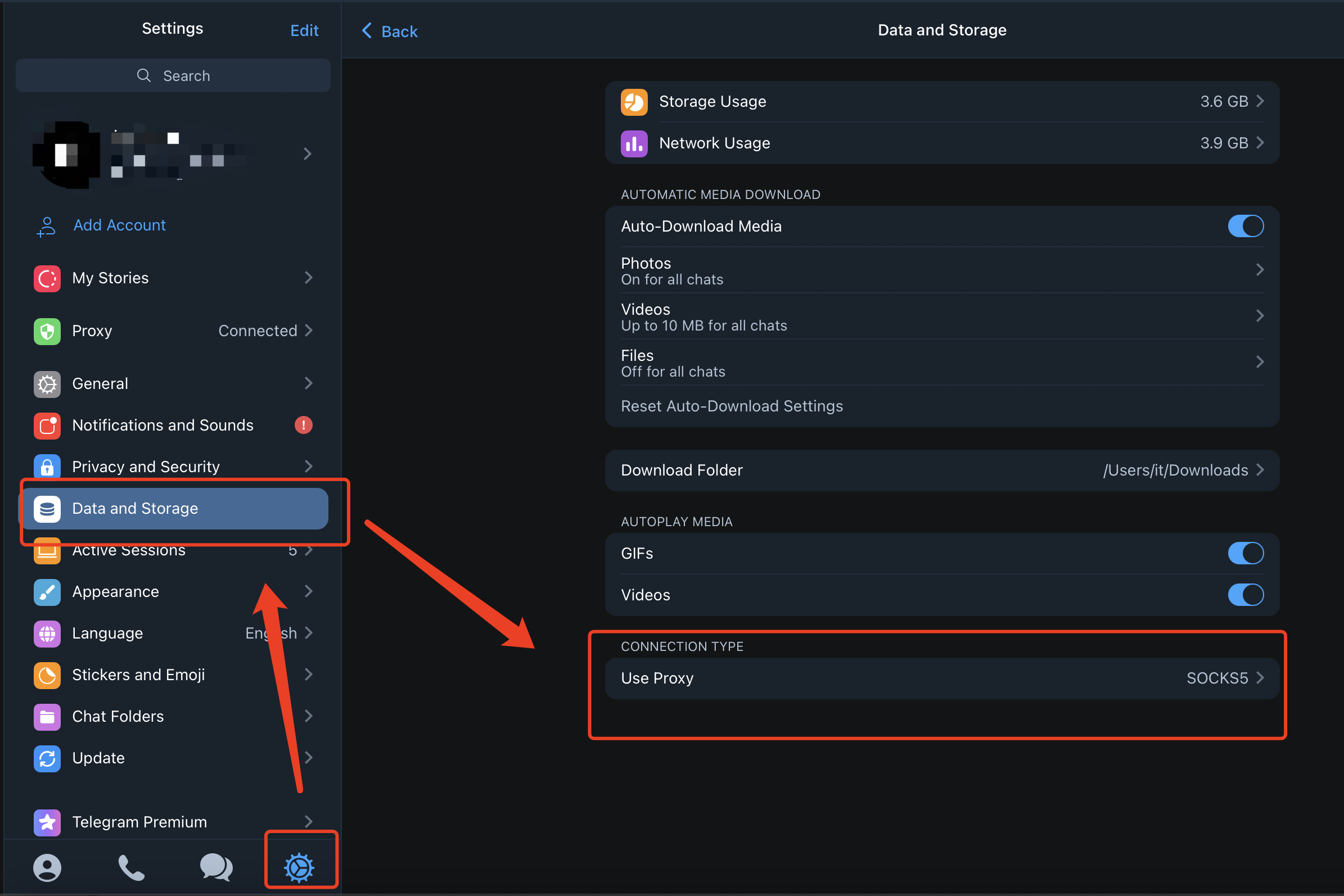
The exact control may be called Use Proxy, None, or Disabled depending on the client version. The important check is the resulting state, not the label: Telegram should stop using the saved proxy for its own traffic. If you are testing a direct connection, leave other network tools unchanged until you have recorded that result.
Does disabling a proxy remove the saved entry?
Disabling and deleting solve different problems. Disabling stops Telegram from using the selected proxy while leaving its details available for later. Deleting removes the saved server, port, secret, or SOCKS5 credentials from the app's proxy list. Choose disable when you are comparing routes or expect to use the same endpoint again. Delete an old entry when you no longer want its credentials stored in Telegram.
The project screenshot shows the same separation in a proxy settings panel: a Proxy switch controls use, while a separate trash icon removes the saved entry. Client layouts vary, so treat the screenshot as a visual guide rather than a promise about every Telegram release.
What should you test after turning it off?
Use a short, repeatable check instead of relying on the setting alone:
- Stay on the same Wi-Fi or mobile network and reload an existing chat.
- Check whether new messages load, then send a low-risk test message if that is appropriate for the chat.
- If the direct route fails, compare the result with mobile data or another network without changing Telegram's other settings.
- Record whether a VPN, system proxy, captive portal, or workplace network was active during the test.
If Telegram works on one network and fails on another, that is evidence about those two routes at that time. It does not prove a country-wide restriction or show that every proxy is unavailable. If you later need a proxy, use the free Telegram proxy directory, keep the server, port, and secret from one entry, and test the connection inside Telegram.
What if Telegram still cannot connect after you disable the proxy?
First check whether other apps can reach the internet. Complete any captive-portal sign-in and review a device-wide VPN or system proxy. If other apps work but Telegram does not, open its proxy settings again and confirm that no saved proxy is enabled.
If you decide to use a proxy again, add one complete endpoint and test it on the network where Telegram needs to work. The Telegram proxy link troubleshooting guide explains what to do when a Connect link opens a browser or fails to save. If an endpoint shows Online in the directory but Telegram remains on Connecting, the Iran troubleshooting guide explains why a low-level health check is not the same as an app-level connection.
Public proxies are operated by third parties. Read the site's privacy and safer setup guide before using one for sensitive conversations.
Questions about disabling Telegram proxies
Does turning off a Telegram proxy disable my VPN?
No. Telegram's proxy setting controls traffic from Telegram. A separate VPN app, operating-system proxy, or browser extension has its own setting and can remain active.
Why does a proxy appear again after I turn it off?
Check whether you enabled it again from a Connect link or selected a saved proxy entry. Telegram also documents an Auto-Switch Proxies option that can move to another saved proxy when the current one disconnects. If your client shows that option, review it while checking the proxy settings.
Should I delete a proxy that will not connect?
Delete it when you no longer need the saved credentials. If you are still comparing networks or endpoints, disable it first so you can re-enable the entry without copying the values again.
Can I turn the proxy back on later?
Yes. Reopen Telegram's proxy settings, select a saved entry, and enable Use Proxy when you need Telegram to route through it again. Confirm the connection in the app before relying on the endpoint.
Sources
TelegramProxy is not affiliated with Telegram. Public proxy listings are third-party and may be offline when you test them.
Related guides
- How to Set Up a Telegram Proxy on Android, iOS, Windows, Mac, and Linux
Step-by-step Telegram proxy setup instructions for Android, iOS, Windows, macOS, and Linux.
- Telegram Proxy Link Not Working? Fix tg://proxy and t.me/proxy
Fix a Telegram proxy link that does nothing, opens a browser, or fails to save the proxy by checking the link format and using manual setup.
- Telegram Proxy Not Connecting in Iran? What to Check When It Shows Online
What to check when a Telegram proxy stays on Connecting in Iran, including the difference between a TCP health check and a real Telegram connection.