Telegram Proxy Keeps Disconnecting? Fix Auto-Switch and Network Problems

TelegramProxy
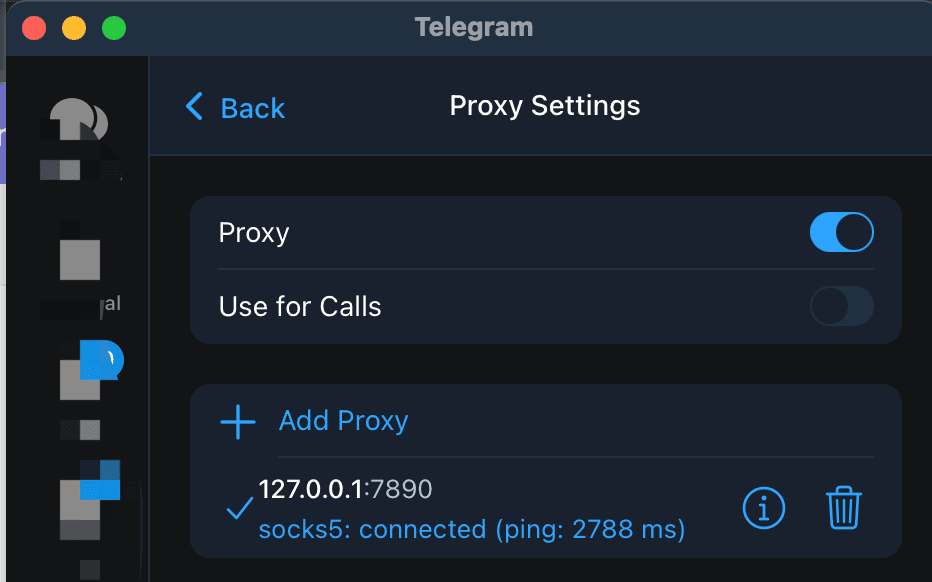
If Telegram keeps disconnecting from a proxy, first check whether Auto-Switch Proxies is enabled, then test one saved endpoint on one network while recording any separate VPN or system proxy. Telegram says Auto-Switch Proxies can move to the next saved proxy when the current one disconnects. That helps when you have several working candidates, but it can make the original failure harder to identify. Turn it off while diagnosing, select one endpoint, and confirm that its MTProto server, port, and secret came from the same listing. If the proxy drops only on Wi-Fi or only on mobile data, the network path is part of the result. If it drops on both networks, recheck the credentials and try another endpoint. An Online badge in a directory is a low-level health signal. It does not confirm that Telegram accepted the proxy or that messages will send.
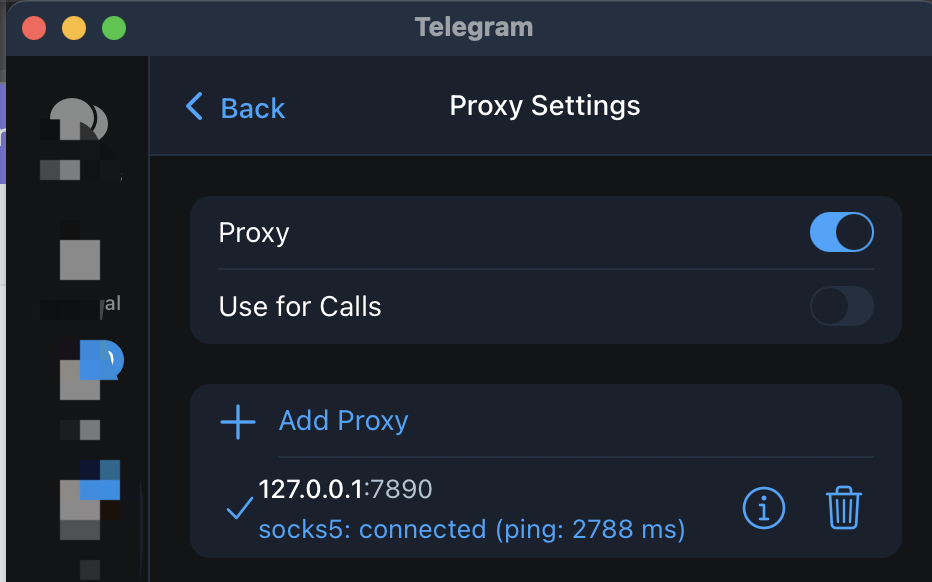
Why does Telegram disconnect after the proxy connects?
A proxy can connect briefly and then fail when the endpoint, route, or client configuration changes. The common patterns are:
- Auto-switching: Telegram moves to another saved entry after the selected proxy drops.
- A changing network: Wi-Fi and mobile data can take different routes to the same server. Captive portals and workplace filters can also interrupt a connection.
- A stale endpoint: A public proxy can go offline, become overloaded, or stop accepting connections after the directory last checked it.
- Incomplete credentials: MTProto needs the server, port, and secret for one endpoint. A copied value from another row describes a different proxy.
- Two routes at once: A VPN, device-level proxy, or another network tool can change the path while Telegram is using its own proxy setting.
The first useful step is to keep one proxy and one network unchanged while you test. Changing the endpoint and network together makes the result difficult to interpret.
What does Auto-Switch Proxies do?
Telegram's official MTProxy documentation says that users with multiple saved proxies can enable Auto-Switch Proxies. When the current proxy disconnects, Telegram automatically tries the next proxy in the list.
Auto-switching is useful when you have several saved entries and want Telegram to recover from an individual endpoint failure. It does not validate the next entry, repair an incorrect secret, or prove that the new proxy can reach Telegram from your network. It can also make a list of stale entries look like one long series of random disconnects.
For diagnosis, open Telegram's proxy settings and turn Auto-Switch off temporarily. The official menu paths are:
| Client | Proxy settings path | | --- | --- | | Android | Settings > Data and Storage > Proxy Settings | | iPhone or iPad | Settings > Data and Storage > Proxy | | Telegram Desktop | Settings > Advanced > Connection Type | | Telegram for macOS | Settings > Data and Storage > Use Proxy |
The exact wording can vary between client versions. The shield icon at the top of the chat list also opens proxy settings when Telegram is connected to a proxy.
How can you tell whether the network or proxy is failing?
Use the same server, port, and secret for both tests. Change only the network, then compare the result:
| Result | What it suggests | Next check | | --- | --- | --- | | It stays connected on Wi-Fi but drops on mobile data | The two networks may route or filter the endpoint differently | Check mobile data with a second endpoint | | It stays connected on mobile data but drops on Wi-Fi | The Wi-Fi route, captive portal, or network policy may affect the connection | Complete any sign-in, then retest the same endpoint | | It drops on both networks with Auto-Switch off | The endpoint or its credentials need closer checking | Re-add the complete entry, then try another endpoint | | Telegram changes entries without your action | Auto-Switch is likely enabled | Turn it off and test each saved entry separately |
This comparison describes the networks and endpoint you tested at that time. It does not establish a country-wide restriction or show that every proxy is unavailable.
What should you do when one proxy keeps dropping?
- Turn off Auto-Switch Proxies so the test stays on one saved entry.
- Open the free Telegram proxy directory and choose one MTProto row.
- Re-add the server, port, and secret from that same row, or use its Connect link.
- Keep one network active and check whether Telegram shows the proxy as connected.
- Refresh an existing chat or send a low-risk test message.
- If the connection drops again, repeat the test on a second network without changing the proxy details.
- Try another row after you record the result for the first one.
For platform-specific setup paths, use the Telegram proxy setup guide. If a Connect link opens a browser or fails to save the endpoint, follow the proxy link troubleshooting guide and use manual entry as the fallback.
Does an Online badge explain repeated disconnects?
An Online badge helps sort a directory, but it is not a Telegram session test. TGProxyHub's directory health logic records whether a server and port passed its own check. It does not sign in to Telegram, complete an MTProto exchange with your secret, or send a message from your device.
The same limit applies to a result from another network. A proxy can pass a directory check and work for one user while dropping for another because the route, endpoint state, client settings, and credentials differ. Treat each badge as a dated starting point, then check the connection inside Telegram.
Should you leave Auto-Switch Proxies on?
Leave it on when you have several saved entries and you prefer automatic failover. Turn it off when you are investigating a disconnect, checking which endpoint works, or removing stale entries from the list.
If Telegram jumps through several entries and none stays connected, delete or disable the entries you no longer trust, then add one complete endpoint and test it by itself. The guide to disabling a Telegram proxy explains how to stop the in-app route while keeping a saved entry for later.
Public proxies are operated by third parties. Telegram's documentation says an MTProxy operator cannot read your Telegram messages or identify your account, but the operator can record the IP address connecting to the server and the fact that the connection is reaching Telegram. Review the privacy and safer setup guide before using a public endpoint for sensitive conversations.
Questions about Telegram proxy disconnects
Does Auto-Switch Proxies fix a dead endpoint?
No. It moves Telegram to the next saved proxy after a disconnect. The next entry still needs valid credentials and a route that works from your network.
Why does Telegram keep reconnecting to different proxies?
Auto-Switch may be enabled, or several saved entries may be active candidates. Turn it off, test one endpoint, and remove entries that repeatedly fail.
Does a connected shield prove that messages will send?
The shield indicates a proxy connection in Telegram. Refresh a chat or send a low-risk test message to check the complete path you need. If the proxy drops, compare the same endpoint on Wi-Fi and mobile data before changing several settings at once.
Official references
- Telegram MTProxy documentation
- Free Telegram proxy directory
- Telegram proxy setup on Android, iOS, Windows, Mac, and Linux
TelegramProxy is not affiliated with Telegram. Public proxy listings are third-party and may be offline when you test them.
Related guides
- Telegram Proxy Link Not Working? Fix tg://proxy and t.me/proxy
Fix a Telegram proxy link that does nothing, opens a browser, or fails to save the proxy by checking the link format and using manual setup.
- Telegram Proxy Not Connecting in Iran? What to Check When It Shows Online
What to check when a Telegram proxy stays on Connecting in Iran, including the difference between a TCP health check and a real Telegram connection.
- Telegram Proxy on iPhone: Add MTProto When a Link Does Not Open
How to add an MTProto proxy manually on iPhone when a Telegram proxy link does not open or save correctly.