Telegram Proxy Link Not Working? Fix tg://proxy and t.me/proxy

TelegramProxy
If a Telegram proxy link is not working, check the link format and the three MTProto values before changing networks. Telegram's documented MTProxy links use either tg://proxy?server=...&port=...&secret=... or https://t.me/proxy?server=...&port=...&secret=.... The server, port, and secret must come from the same proxy entry. A tg:// link asks the operating system to hand the request to Telegram; an https://t.me/proxy link gives you a browser-compatible fallback. If the first link does nothing, open the HTTPS version or add the proxy manually in Telegram's Proxy settings. After saving it, look for Telegram's shield icon, refresh a chat, and test the connection on the network you care about. A directory's Online badge only describes its own check. It does not show that your app received the link, accepted the credentials, or can reach Telegram.
What should a Telegram proxy link contain?
A valid proxy link carries the connection details Telegram needs. Telegram's deep-link documentation defines separate link formats for MTProto and SOCKS5, so the path and query parameters matter.
| Proxy type | Link shape | Values required |
| --- | --- | --- |
| MTProto | tg://proxy?server=...&port=...&secret=... | Server, port, secret |
| MTProto HTTPS | https://t.me/proxy?server=...&port=...&secret=... | Server, port, secret |
| SOCKS5 | tg://socks?server=...&port=...&user=...&pass=... | Server, port, optional username and password |
TGProxyHub's Connect button converts a listed proxy into a tg://proxy link and opens it in the same tab. That avoids a common handoff problem caused by opening custom schemes in a new browser tab. If the link was copied from somewhere else, compare the complete address with the source row before trying to repair it by hand.
Why does tg://proxy do nothing?
tg:// is a custom URI scheme. Telegram clients register handlers for Telegram deep links, while browsers and operating systems decide whether to pass the request to an installed app. A handoff can fail before Telegram sees the server, port, or secret.
The visible symptom usually identifies the broken step:
| What happens | Likely place to check | | --- | --- | | Nothing happens after the tap | The browser or operating system blocked the custom scheme | | A browser page opens | Use the HTTPS proxy link or choose the option to open it in Telegram | | Telegram opens with no proxy prompt | The link was truncated, changed, or the app did not receive its query parameters | | Telegram saves the proxy but stays on Connecting | Check the credentials, endpoint, and current network separately |
Start with the least destructive fix: open the source page in the browser where Telegram is installed, tap Connect once, and wait for Telegram's confirmation prompt. If the prompt never appears, keep the same proxy entry and switch to its HTTPS form. Avoid pasting a partial link into a chat and copying it back out, because long query strings are easy to truncate or alter.
How do you add the proxy when the link will not save it?
Manual entry is the reliable fallback when a browser does not hand the link to Telegram. Copy the server, port, and secret from one row in the free Telegram proxy list, then enter all three values together.
Telegram documents these menu paths:
- Android: open Settings > Data and Storage > Proxy Settings at the bottom of the page.
- iPhone and iPad: open Settings > Data and Storage > Proxy at the bottom of the page. The iPhone proxy guide covers the link handoff and manual fields with a platform-specific example.
- Telegram Desktop: open Settings > Advanced > Connection Type, then choose the proxy option.
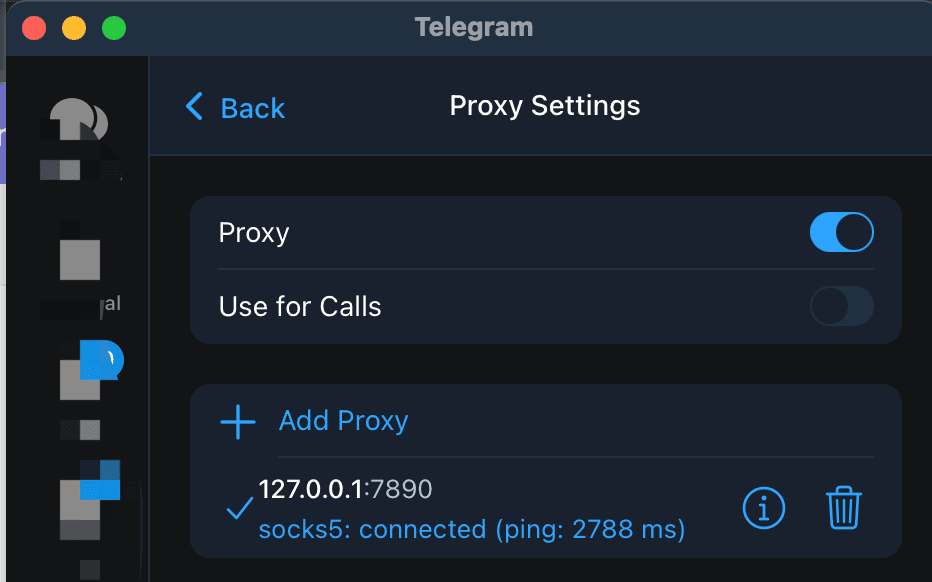
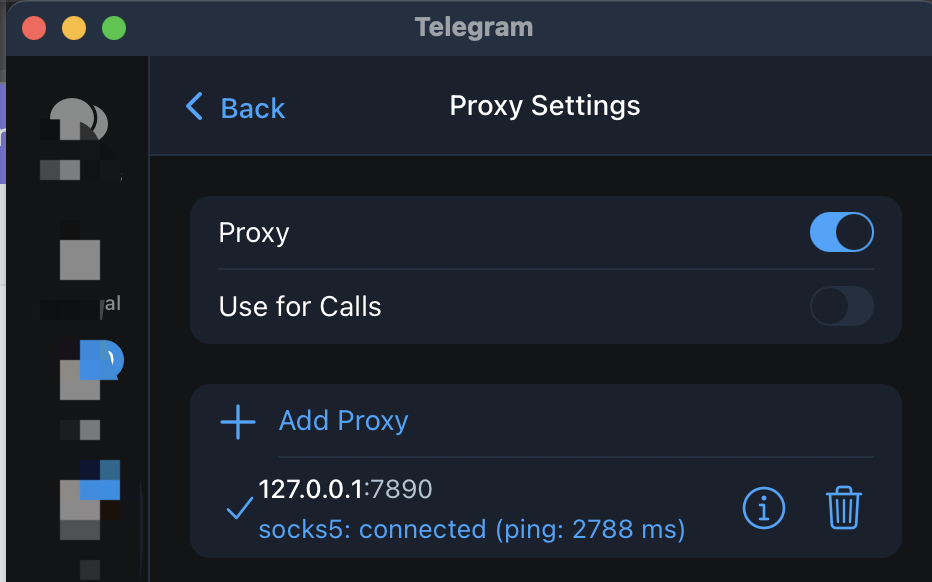
- Telegram for macOS: open Settings > Data and Storage > Use Proxy.
For MTProto, select MTProto and enter the server, port, and secret. For SOCKS5, use the server and port, then add a username and password only when the source provides them. Telegram's official MTProxy documentation lists the required fields and warns users to choose proxy operators they trust.
How can you tell whether the proxy is connected?
Telegram shows a shield icon at the top of the chat list after it connects to a proxy. Tap the icon or open the proxy settings to confirm that the entry is enabled. Then refresh a chat or send a low-risk test message on the same network where you need Telegram to work.
The shield is a client-side connection signal. A more complete check also covers message loading or sending. If the proxy stays on Connecting, test the same endpoint on Wi-Fi and mobile data without changing its credentials. A result that changes with the network points to a route or filtering difference. A failure on both networks is a reason to recheck the copied values and try another endpoint from the free directory.
Country labels and directory badges help you choose where to start. They do not prove that Telegram will connect from your device or that a server is physically located in the displayed country.
What if t.me/proxy opens a web page instead?
The https://t.me/proxy form is a normal HTTPS link, so a browser may display the page before offering an app handoff. Use the browser's Open in Telegram option when it appears. If it only shows a web page or an error, return to the original proxy row and use one of these paths:
- Tap Connect again from the directory on the device where Telegram is installed.
- Copy the full HTTPS link into the device browser, then accept the Telegram handoff if offered.
- Enter the server, port, and secret manually in Telegram's Proxy settings.
Do not mix the secret from one listing with the server and port from another. The three fields describe one MTProto endpoint. If the link is old, the endpoint may also have gone offline since it was published or checked, so another row can be a better test than repeated taps on the same address.
When should you stop retrying one proxy link?
Try another endpoint after the link is complete, the proxy is enabled, and the same connection still fails on more than one network. Public endpoints can disappear, become overloaded, or be filtered differently by a local network. A successful low-level check from a directory is useful for sorting a list, but it does not test Telegram login, message delivery, or your exact route.
If several fresh endpoints fail in the same way, remove any second VPN or proxy, complete a captive-portal sign-in, and check the app's connection settings. The site's Iran troubleshooting guide explains the difference between a directory health check and an actual Telegram connection. For broader privacy limits and safer choices, read the privacy and safer setup guide.
Questions about Telegram proxy links
Is tg://proxy better than https://t.me/proxy?
They can carry the same MTProto server, port, and secret. tg://proxy is a direct Telegram deep link, while the HTTPS form gives the browser an address it can display or hand off. Use the HTTPS form or manual entry when the custom scheme is blocked.
Does an Online badge mean the proxy link will work?
No. The badge describes the directory's own check at a particular time. Telegram still has to receive the link, accept the credentials, reach the endpoint from your network, and connect to Telegram.
Can a Telegram proxy link work without the Telegram app installed?
The link can open as a web address, but a proxy link is intended to configure a Telegram client. Install or open an official Telegram mobile or desktop app, then use the HTTPS handoff or enter the credentials in its Proxy settings.
Can I use a SOCKS5 proxy link instead?
Yes. Telegram documents tg://socks and t.me/socks links. SOCKS5 uses a server and port, with an optional username and password. Use values from the same source entry and check whether your Telegram client supports the link handoff.
Sources and next steps
- Telegram deep links
- Telegram MTProxy documentation
- Telegram proxy setup on Android, iOS, Windows, Mac, and Linux
TelegramProxy is not affiliated with Telegram. Public proxy listings are third-party and may be offline when you test them.
Related guides
- Telegram Proxy Not Connecting in Iran? What to Check When It Shows Online
What to check when a Telegram proxy stays on Connecting in Iran, including the difference between a TCP health check and a real Telegram connection.
- Telegram Proxy on iPhone: Add MTProto When a Link Does Not Open
How to add an MTProto proxy manually on iPhone when a Telegram proxy link does not open or save correctly.
- How to Use Telegram Proxy in Russia - 2026 Guide
Learn how Telegram MTProto and SOCKS5 proxies work in Russia, how to connect safely, and what to check before trusting a public proxy.