TG WS Proxy on macOS: Connect Telegram Desktop to a Local MTProto Proxy

TelegramProxy
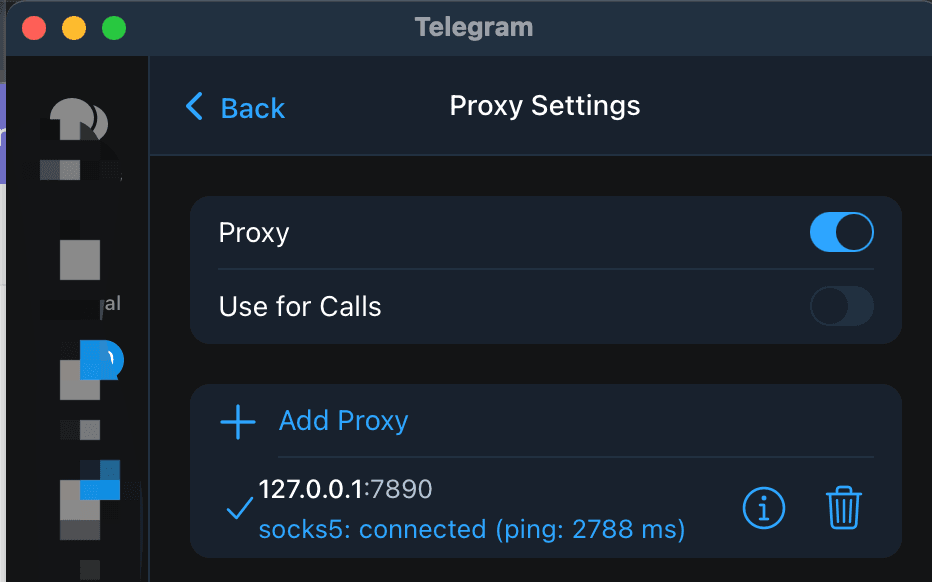
If you are trying to use TG WS Proxy on a Mac, download the universal build from the project's GitHub Releases, start it, and add its local MTProto listener in Telegram Desktop. The project's macOS instructions use 127.0.0.1 as the server and 1443 as the default port. Copy the secret shown by TG WS Proxy, then open Settings > Advanced > Connection type > Proxy in Telegram Desktop and save an MTProto entry. The tool forwards Telegram Desktop traffic through a WebSocket path and documents fallback behavior when that path is unavailable. It is a separate local application, different from Telegram's built-in WEB proxy and from TGProxyHub's public directory. Install it from the project's release page, review the source and release notes, and keep the result limited to the Mac, Telegram Desktop build, and network you test. A successful local connection does not prove faster downloads, mobile support, or availability on every network.
What is TG WS Proxy on macOS?
TG WS Proxy is a third-party local MTProto proxy project for Telegram Desktop. Its macOS documentation describes a universal disk image for Intel and Apple Silicon Macs. The application listens locally, then forwards the Telegram connection through WebSocket-based transport according to the project's implementation.
The local layout looks like this:
| Component | Role in the setup | What the result tells you | | --- | --- | --- | | TG WS Proxy | Runs a proxy listener on the Mac | The local process is available on its configured host and port | | Telegram Desktop | Connects to that listener as an MTProto proxy | This Telegram Desktop client can use the saved local entry on the current network | | Telegram's WebSocket path | Carries the forwarded connection when the project can use it | The selected route worked at that time, if Telegram connects | | TGProxyHub directory | Lists public third-party proxy endpoints | It does not provide or verify this local application |
The project's README describes the default local address as 127.0.0.1:1443 and says the client secret comes from the application's settings or logs. These are configuration details for the TG WS Proxy instance you run. They are not credentials from the TGProxyHub free proxy list.
How do you install TG WS Proxy on a Mac?
Use the upstream release page for the application package. The project's macOS instructions name TgWsProxy_macos_universal.dmg as the build for Intel and Apple Silicon.
- Open the TG WS Proxy Releases page and download the macOS universal disk image.
- Open the disk image and drag
TG WS Proxy.appto Applications. - Launch the app. If macOS asks you to confirm the first launch, review the download source before using System Settings > Privacy & Security > Open Anyway.
- Open the app's settings or logs and note the local port and secret. The documented defaults are
127.0.0.1and port1443; use the values shown by the instance if you changed them. - Leave the app running while Telegram Desktop uses the local proxy.
The same documentation lists Intel macOS 10.15 or later and Apple Silicon macOS 11.0 or later as the minimum versions for the current macOS build. Treat those as the project's stated support floor, not a guarantee for every macOS release or security policy.
How do you connect Telegram Desktop to the local proxy?
Telegram's official MTProxy documentation lists Settings > Advanced > Connection Type as the Telegram Desktop path. The local entry should use the protocol and values supplied by the running TG WS Proxy instance.
- Open Telegram Desktop and go to Settings > Advanced > Connection Type.
- Choose the custom proxy option and add a new proxy.
- Select MTProto. Do not select SOCKS5 for the values below.
- Enter
127.0.0.1as the server and1443as the port unless the TG WS Proxy settings show a different address. - Copy the complete secret from the same TG WS Proxy instance. Keep the server, port, and secret together.
- Save the entry, enable it, and wait for Telegram Desktop to refresh its connection state.
If the application provides a connection link, use it only when the link opens the expected MTProto form. Manual entry is easier to audit because you can compare each value with the running local process. The Telegram proxy server guide explains why an MTProto server, port, and secret must come from one complete entry.
What should you test after saving the proxy?
Start with one client, one local configuration, and one network. Changing the app, proxy fields, VPN, and network together leaves no useful explanation when the result changes.
- Confirm that TG WS Proxy is still running and that its configured listener has not changed.
- Check that Telegram Desktop saved an MTProto entry with the same server, port, and secret.
- Enable the entry and wait for the client to update its connection state.
- Refresh an existing chat. If appropriate, send a short low-risk message as an application-level check.
- Record the result with the Telegram Desktop version, macOS version, network type, and TG WS Proxy settings you used.
The shield icon or a saved form is only a client signal. A chat refresh or message test checks more of the path, but it still describes the specific Mac, account, endpoint, and network you tested. It does not establish that the same configuration will work on a phone, another carrier, or a different country.
Why can TG WS Proxy connect while media still fails?
The upstream README records a project-specific problem where photos or videos may not load even when the proxy connection is present. Its documented troubleshooting path is to review the proxy's DC > IP settings, try leaving only 4:149.154.167.220, or clear the field completely. If that does not help, the project points to its own Cloudflare or domain configuration guidance.
Treat those steps as the project's workaround for its own routing configuration. They are not a Telegram-wide fix, and this article does not claim that the workaround succeeds on every account or network. Change one setting at a time, keep the original value available, and check whether ordinary chat traffic and media behave differently.
If Telegram Desktop cannot connect at all, use this shorter checklist:
| Symptom | Check next |
| --- | --- |
| The entry stays on Connecting | Confirm the local app is running, the protocol is MTProto, and the secret came from that same instance |
| The app opens but Telegram cannot reach 127.0.0.1 | Confirm the port in Telegram matches the app; on macOS, lsof -nP -iTCP:1443 -sTCP:LISTEN can show whether something is listening on the documented default |
| Telegram opens the wrong form | Enter the values manually and check that the entry is MTProto rather than the client-specific WEB type |
| Chat works but media does not | Review the upstream project's DC and media notes before changing several network layers |
| A security warning appears for the binary | Verify that the file came from the upstream release page and follow your device or organization policy; do not treat a warning or a clean result as a complete security audit |
Is TG WS Proxy the same as Telegram's WEB proxy?
No. Telegram Desktop's WEB proxy is a client-specific proxy type described in Telegram Desktop's implementation notes. TG WS Proxy is separate software that runs on your Mac and exposes a local MTProto endpoint to Telegram Desktop.
The link and field shapes are different:
| Setup | Where it runs | Typical configuration boundary |
| --- | --- | --- |
| Telegram Desktop WEB proxy | Inside the Telegram Desktop client | A webproxy link or the WEB fields supported by that client build |
| TG WS Proxy | As a third-party local application on macOS | A local MTProto entry such as 127.0.0.1, port 1443, and the app's secret |
| Public MTProto proxy | On an endpoint operated by a third party | The server, port, and secret from one complete listing |
Do not paste 127.0.0.1:1443 into a WEB form, and do not treat a tg://webproxy link as a TG WS Proxy configuration. The existing Telegram WEB proxy guide covers the client-specific type and its link format.
Can you build TG WS Proxy from source on macOS?
Yes, the project's source-build instructions document a tray command for macOS. They also say that the interface needs a Python build with Tk support. Check that prerequisite, then use the commands documented by the project:
python3 -m tkinter
git clone https://github.com/Flowseal/tg-ws-proxy.git
cd tg-ws-proxy
pip install -e .
tg-ws-proxy-tray-macos
Source installation adds Python, package, and dependency decisions to the setup. Use the packaged release when it fits your Mac, and inspect the repository and dependencies before running source-install commands.
Questions about TG WS Proxy on macOS
Does TG WS Proxy work with Telegram on iPhone?
The upstream macOS guide is written for Telegram Desktop. A local listener on a Mac does not automatically configure Telegram on another device. A phone would need a separate network setup and a deliberately reachable host, which is outside the local desktop steps above.
Is TG WS Proxy an official Telegram product?
No. It is a separate open-source project. Telegram's official documentation covers the proxy types and client settings; the TG WS Proxy repository covers its own application, builds, and routing behavior.
Does it guarantee faster Telegram downloads?
No. The project describes a WebSocket-based routing strategy and partial bypass behavior. The result depends on the Mac, the Telegram Desktop build, the network, the selected route, and Telegram-side conditions. No independent speed result is established here.
Does TGProxyHub test TG WS Proxy?
No. TGProxyHub's directory health fields describe checks against listed public endpoints. They do not test a third-party desktop application, its local listener, its secret, or Telegram message and media delivery.
Official references and related guides
- Telegram MTProxy documentation: Telegram's proxy types, client paths, credentials, and trust guidance.
- TG WS Proxy repository: project source, license, releases, and platform notes.
- TG WS Proxy macOS instructions: packaged installation, local MTProto fields, and supported macOS versions.
- TG WS Proxy source-build instructions: Python and macOS tray installation details.
- Telegram Desktop WEB proxy design: the separate client-specific WEB proxy type.
- Telegram proxy for PC: standard Telegram Desktop setup and testing.
- Telegram proxy server fields: how to keep an MTProto server, port, and secret together.
- Telegram proxy setup on Android, iOS, Windows, Mac, and Linux: cross-platform app paths.
TelegramProxy is not affiliated with Telegram. TG WS Proxy is a third-party project, and public proxy endpoints are operated by third parties that can change or disappear.
Related guides
- Telegram Proxy for PC: Set Up and Test Telegram Desktop on Windows
Set up an MTProto or SOCKS5 proxy on Telegram Desktop for Windows, choose the right connection type, and test the route without confusing it with a system proxy.
- Indian Telegram Proxy: How to Choose and Test an MTProto Server
A practical way to use India-listed Telegram proxies, test the full connection in Telegram, and avoid treating an online label as a guarantee.
- Telegram Proxy Server: Where to Find the Host, Port, and Secret
Find a complete Telegram proxy server entry, match its MTProto fields, and test the connection without treating an online label as a guarantee.