Why Is Telegram Asking Me to Use a Proxy?

TelegramProxy
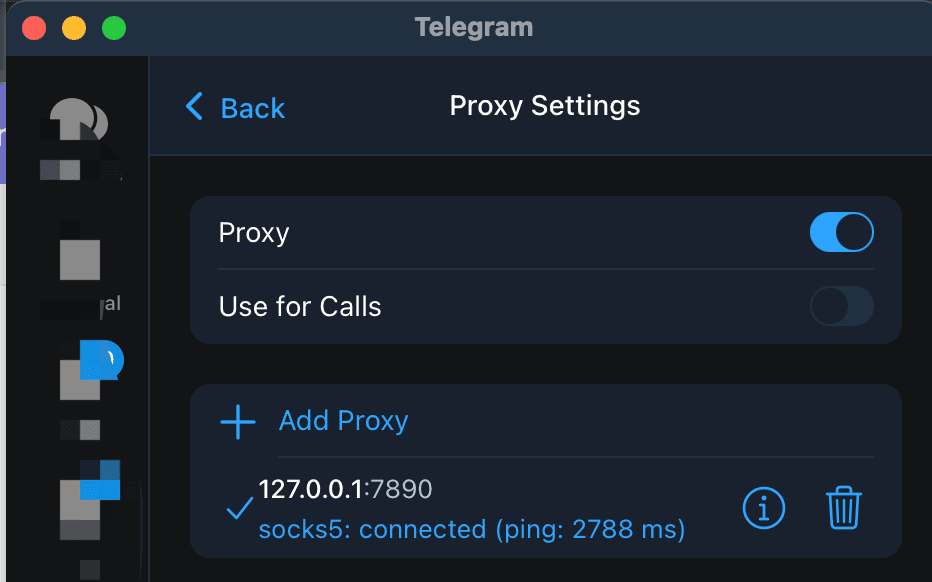
Telegram may ask you to use a proxy when the app has a proxy suggestion available. Telegram's API docs describe help.PromoData as information about pinned MTProxy or Public Service Announcement peers, with pending and dismissed suggestions. That gives an official explanation for why an in-app proxy prompt can appear, while the prompt itself says little about your network. It does not prove that Telegram is blocked in your country, that your ISP is filtering it, or that the suggested server will work for you. If the message appears inside the official Telegram app, inspect the entry before enabling it. An MTProto proxy needs one server, port, and secret; a SOCKS5 proxy needs a server and port, with optional username and password. Test one complete record on the same device and network. If Telegram already works directly, close the prompt or turn the in-app proxy off. A browser pop-up or download page asking for account credentials is a different situation; close it.
What does the Telegram proxy prompt mean?
The prompt means Telegram has presented a possible route for its own traffic. Telegram's help.PromoData documentation describes data for pinned MTProxy or Public Service Announcement peers, along with pending and dismissed suggestions. That is enough to explain why the app can offer a proxy inside Telegram.
The prompt does not identify the exact cause of your connection problem. Telegram's MTProxy documentation explains that a proxy can help when a network restricts access to Telegram's known IP ranges, but a prompt alone cannot show whether the issue is an ISP route, a temporary outage, an overloaded endpoint, or an app setting. Treat the message as an option to test.
How can you tell whether the message is from Telegram?
Check where the message appears before following it:
- Inside the Telegram app: A notice near the chat list or a control in Telegram's proxy settings belongs to the client you are using. Review the server details and the proxy type before enabling it.
- On a website or in a browser pop-up: The page is outside Telegram. Do not install a separate app, enter a login code, or provide your Telegram password because a page claims that a proxy is required.
- After opening a proxy link: Telegram supports
t.me/proxyandtg://proxylinks for MTProto entries. If the link opens a browser or fails to save the entry, use the proxy link troubleshooting guide and enter the same record manually.
A valid proxy setup uses connection fields. It never asks for your Telegram account credentials. Keep those two kinds of information separate.
Should you accept the suggested proxy?
Use the prompt as a decision point:
| What you see | Next step | What the result tells you | | --- | --- | --- | | Telegram works normally without a proxy | Close the prompt or leave the proxy disabled | Your direct route worked at that time | | Telegram cannot connect and the prompt is inside the app | Review one complete proxy entry and test it | Whether that entry works on your device and network | | A proxy connects, then Telegram shows a shield icon | Refresh a known chat or perform a low-risk test | That Telegram enabled the in-app route, not that every action will succeed | | A website asks you to download software or enter a code | Close the page | The page is not evidence that Telegram requires a proxy |
Public proxies are operated by third parties. Telegram says that an MTProxy operator cannot read your messages or identify your account, while the operator can record metadata such as your IP address, connection times, and the fact that you are connecting to Telegram. Use an endpoint from a source you understand, and keep sensitive conversations out of a proxy you do not trust.
How should you test a Telegram proxy prompt?
Keep the test narrow so the result is useful:
- Record the direct route first. Open Telegram on the network where the prompt appeared and note whether a known chat refreshes or messages sync.
- Use one complete entry. Choose one row from the free Telegram proxy directory, or copy the values shown by Telegram. Do not combine a server from one row with a secret or password from another.
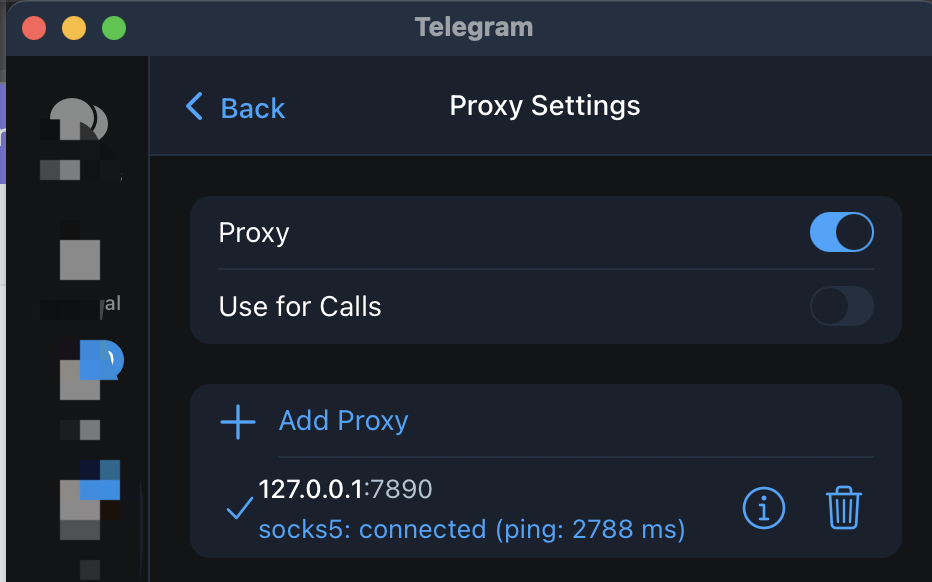
- Match the protocol to the fields. MTProto requires a server, port, and secret. SOCKS5 requires a server and port, with a username and password when the provider supplies them.
- Remove a second route from the comparison. Disable another VPN, system proxy, or saved proxy while testing so you know which path Telegram is using.
- Check the app after saving. Telegram's shield icon indicates that a proxy is connected. Refresh the same chat or repeat the same low-risk action you used before the test.
- Try another network if needed. Test the same endpoint on Wi-Fi and mobile data. A difference between those two networks is evidence about those routes at that moment; it does not prove a country-wide block.
The directory's Online label is a separate signal. A TCP check can show that a server and port accepted a connection without proving that Telegram accepted the secret, completed an MTProto exchange, or delivered a message.
What details does Telegram need for the proxy?
Telegram supports MTProto and SOCKS5 entries with different fields:
| Proxy type | Required details | Optional details | | --- | --- | --- | | MTProto | Server, port, secret | None in the standard entry | | SOCKS5 | Server, port | Username and password when supplied by the provider |
The Telegram proxy server guide explains how to keep one record together. The cross-platform setup guide shows where the proxy setting is located on Android, iOS, Windows, macOS, and Linux.
If the suggested entry has missing or mismatched fields, save a different complete entry instead of trying random combinations. An Online badge from a directory cannot validate a secret that was copied from somewhere else.
How do you dismiss or turn off the proxy?
If you do not want to use the suggested route, close the notice and leave Use Proxy disabled. If Telegram already enabled it, open the proxy settings and turn off the same control. You can keep the saved entry for later without using it. The Telegram proxy disable guide lists the current menu paths and explains the difference between disabling an entry and deleting its saved details.
Turning off Telegram's in-app proxy does not disable a separate VPN, operating-system proxy, or browser extension. Check those independently if Telegram still follows an unexpected route.
Questions about Telegram proxy prompts
Does the prompt prove that Telegram is blocked?
No. It shows that Telegram has offered a proxy-related option. Test the direct route and one complete proxy entry before drawing a conclusion about your network. Country labels and server health checks do not prove local Telegram availability.
Will a Telegram proxy affect other apps?
An in-app Telegram proxy routes Telegram traffic through the saved endpoint. It does not automatically configure every app on the device. A system VPN or system proxy is a separate setting.
Why can the prompt appear again later?
Telegram's API includes pending and dismissed proxy suggestions, but the official documentation does not define one universal schedule for showing them. A later prompt is not evidence that the previous proxy worked or that your network condition is unchanged.
Is any free proxy safe to accept?
No public endpoint should be treated as automatically trustworthy. Use a complete record from a source you understand, avoid sharing sensitive information through an unknown operator, and read the site's privacy and safer setup guide before relying on one.
Telegram's documentation
- Telegram MTProxy documentation: supported proxy types, settings, credentials, and operator limits.
help.PromoDatatype: Telegram's data structure for pinned MTProxy or Public Service Announcement peers and suggestions.- Telegram proxy deep links: the
t.me/proxyandtg://proxyformats.
TelegramProxy is not affiliated with Telegram. Public proxy availability can change between checks.
Related guides
- Can a Telegram Proxy Make Downloads Faster?
A practical test for Telegram proxy download speed, including route comparisons, endpoint checks, and limits that a proxy cannot remove.
- Telegram Proxy Keeps Disconnecting? Fix Auto-Switch and Network Problems
What to check when Telegram connects to a proxy and then drops it, including Auto-Switch Proxies, network changes, and stale endpoints.
- Telegram Proxy Link Not Working? Fix tg://proxy and t.me/proxy
Fix a Telegram proxy link that does nothing, opens a browser, or fails to save the proxy by checking the link format and using manual setup.